How to Run a Local Model on Your Mobile Device?
A practical guide to running on-device AI with Google AI Edge Gallery on Android and iOS—local models, your data, and no subscription required.
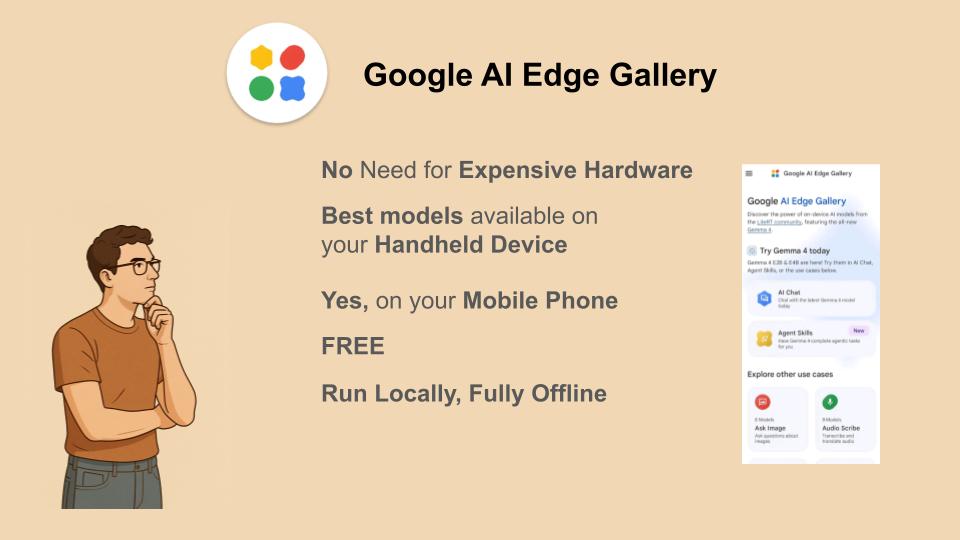
Edge devices are the new frontier of artificial intelligence. Local (on-device) models let you personalise context and reduce reliance on cloud infrastructure and third-party servers. They support digital sovereignty: you stay in control of your data and your time.
In a mobile-first AI era, these models run natively on your handheld hardware. You can use capable models without the internet or paid subscriptions to providers such as OpenAI or Anthropic.
You need a smartphone with at least 8 GB RAM and a processor that supports on-device AI acceleration.
Below is a compact walkthrough for turning this on using Google AI Edge Gallery on Android. The same app is also available on iOS, so the flow is largely the same once you install it from the App Store.
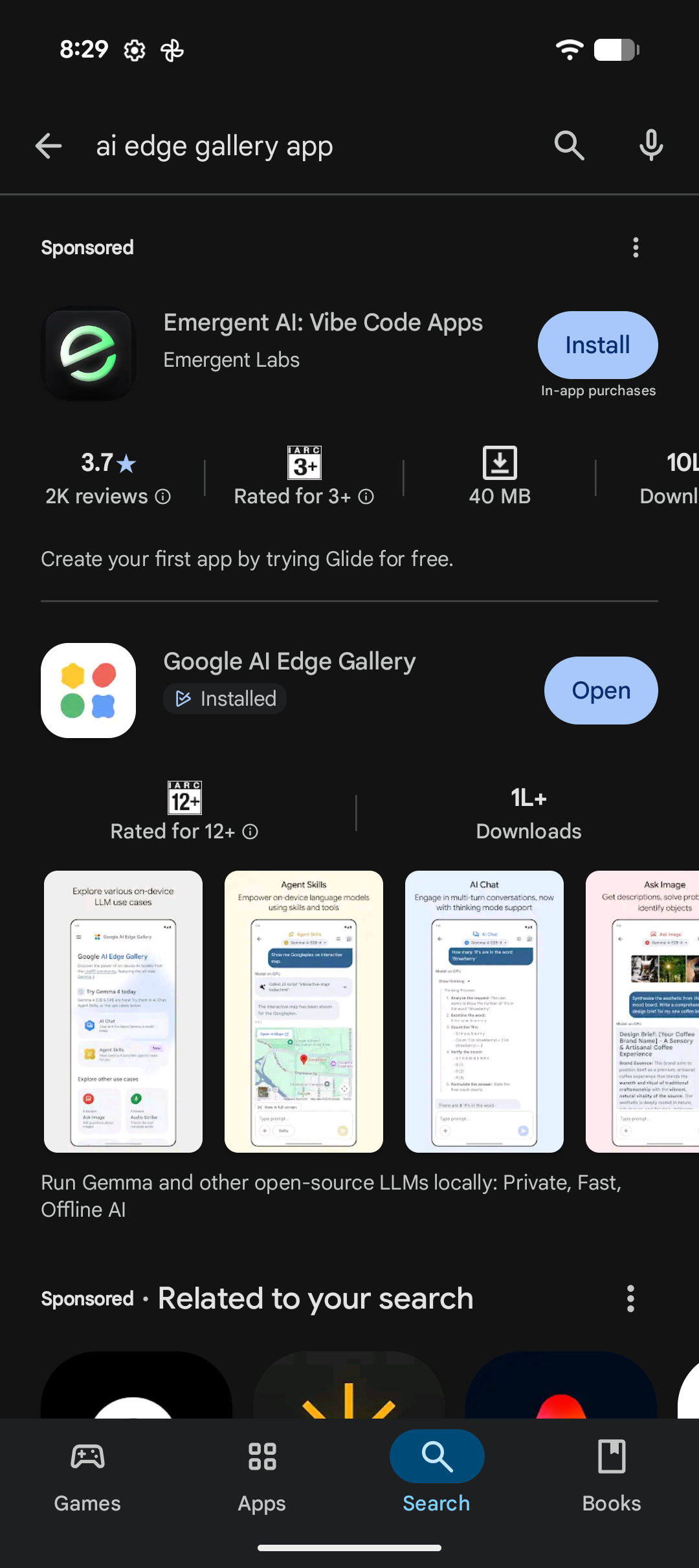
1. Download and install Google AI Edge Gallery
Install Google AI Edge Gallery from the Google Play Store (Android) or the App Store (iOS).
2. Open the app and pick a use case
Open Google AI Edge Gallery. You will see a grid of use cases to explore.
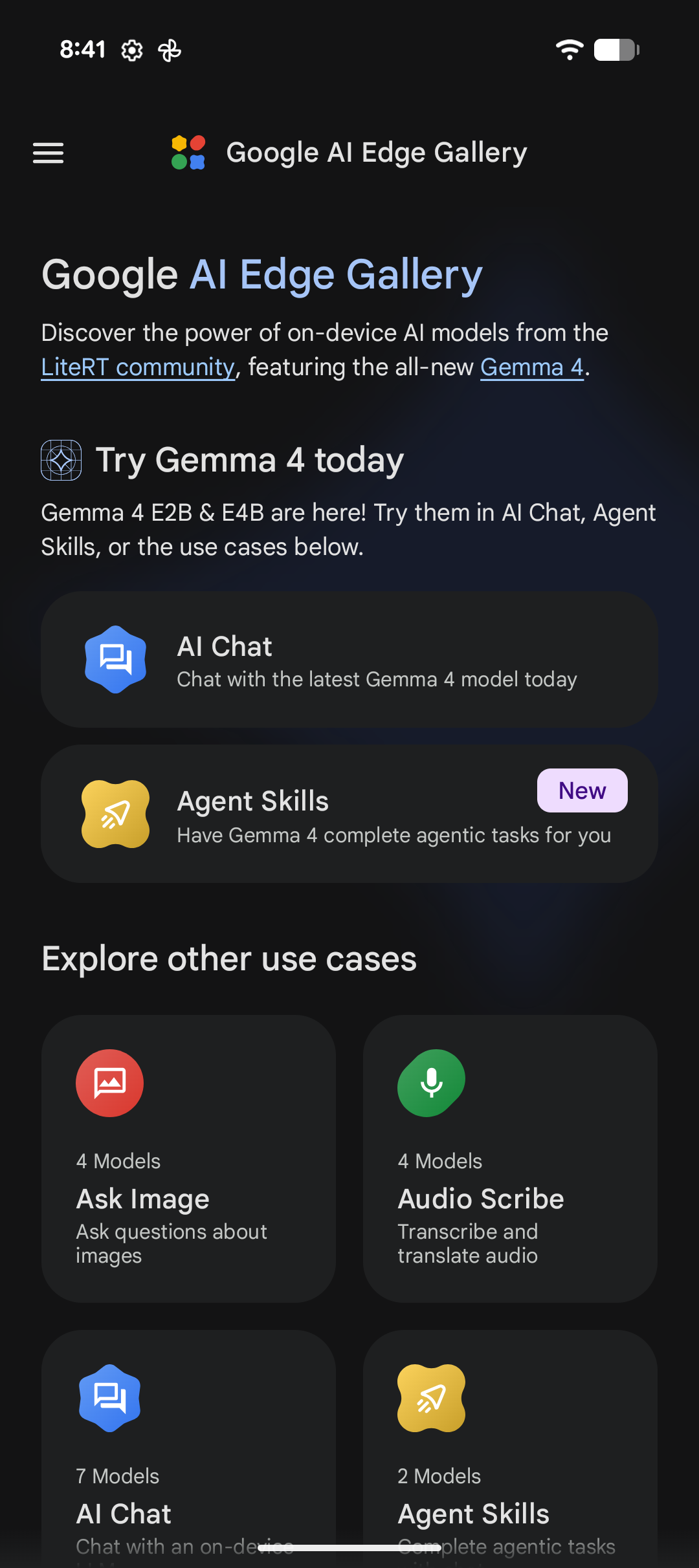
3. Choose AI Chat
For this guide, select AI Chat so you can converse with a model running locally.
4. Browse available models
After opening AI Chat, you will see a list of model options you can download and run on-device.
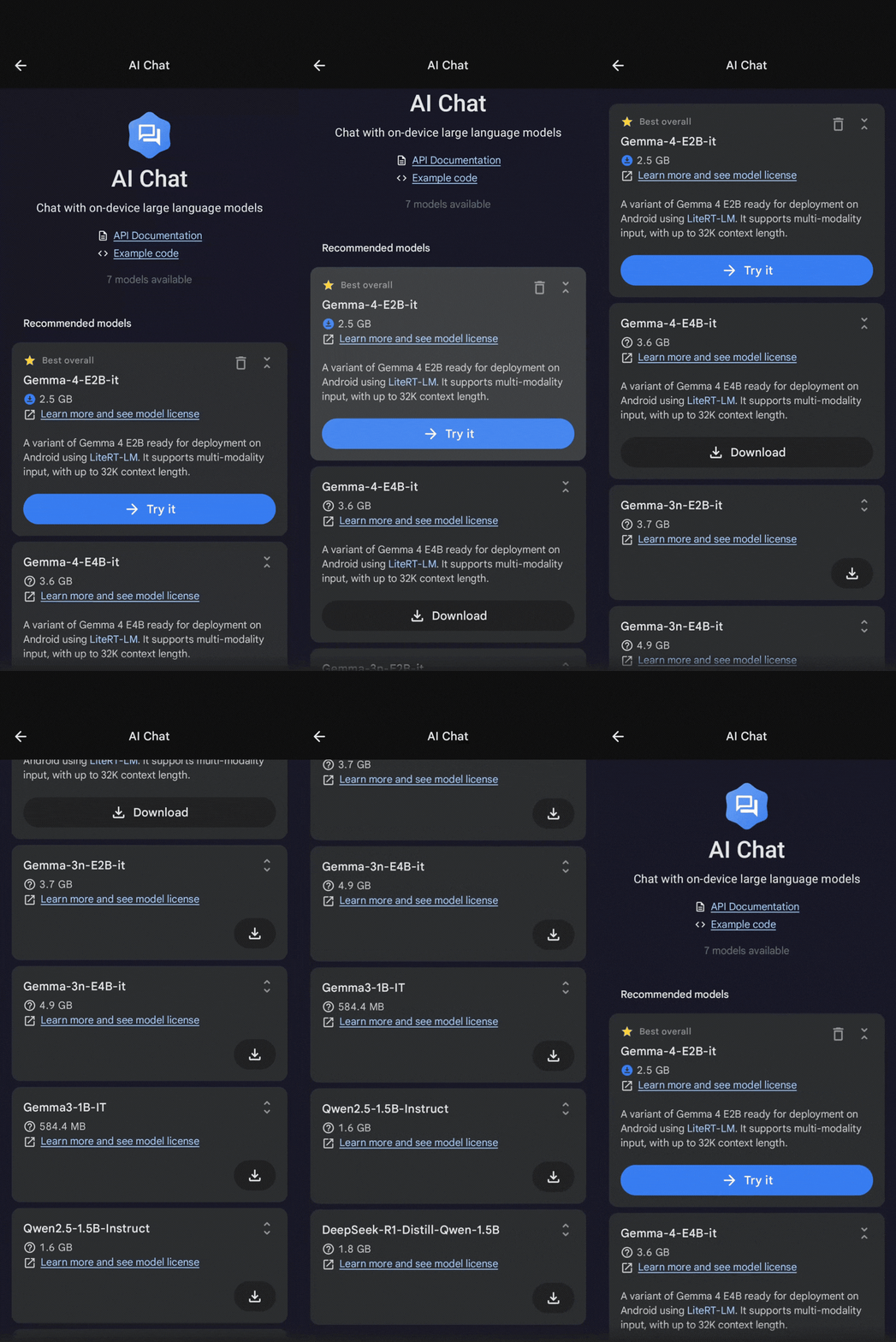
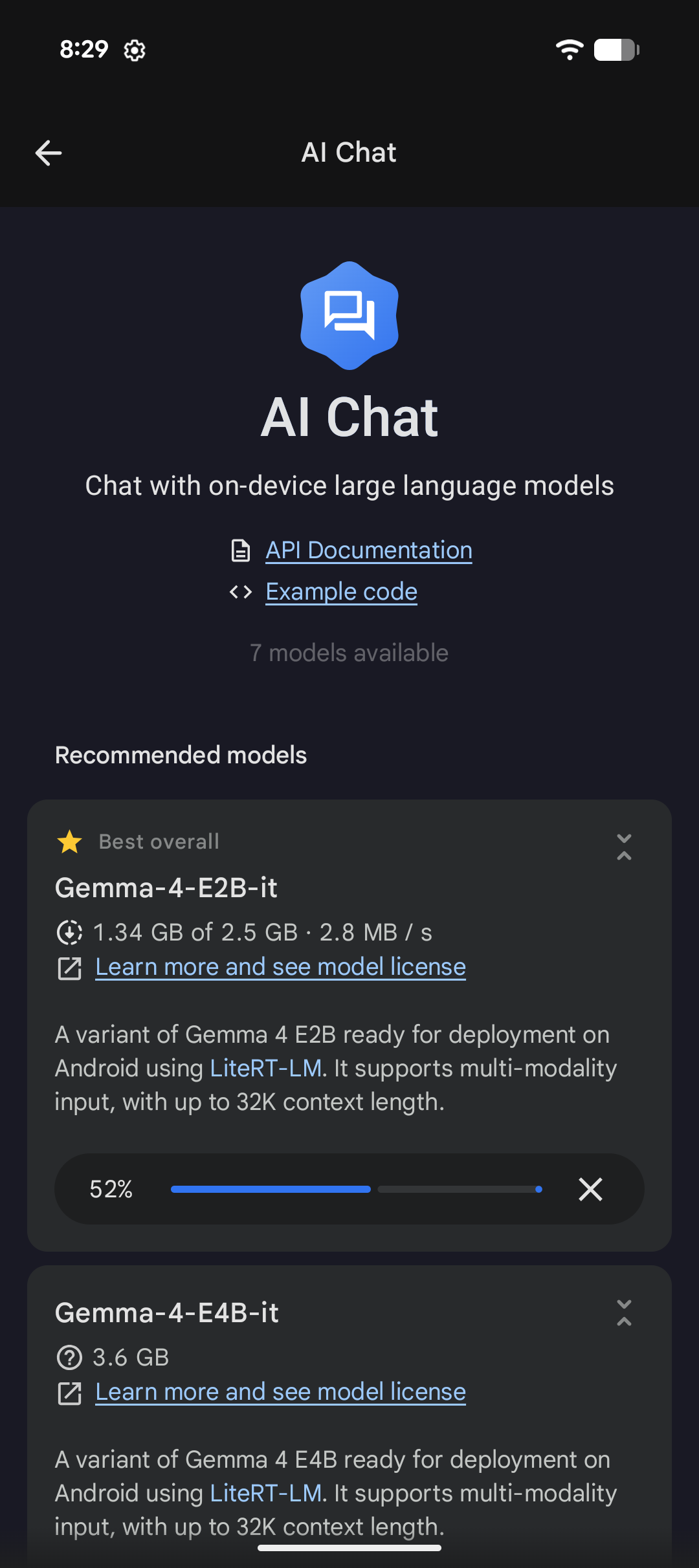
5. Download a model
Tap Download on the model card you want. The app will fetch the weights and assets needed for local inference.
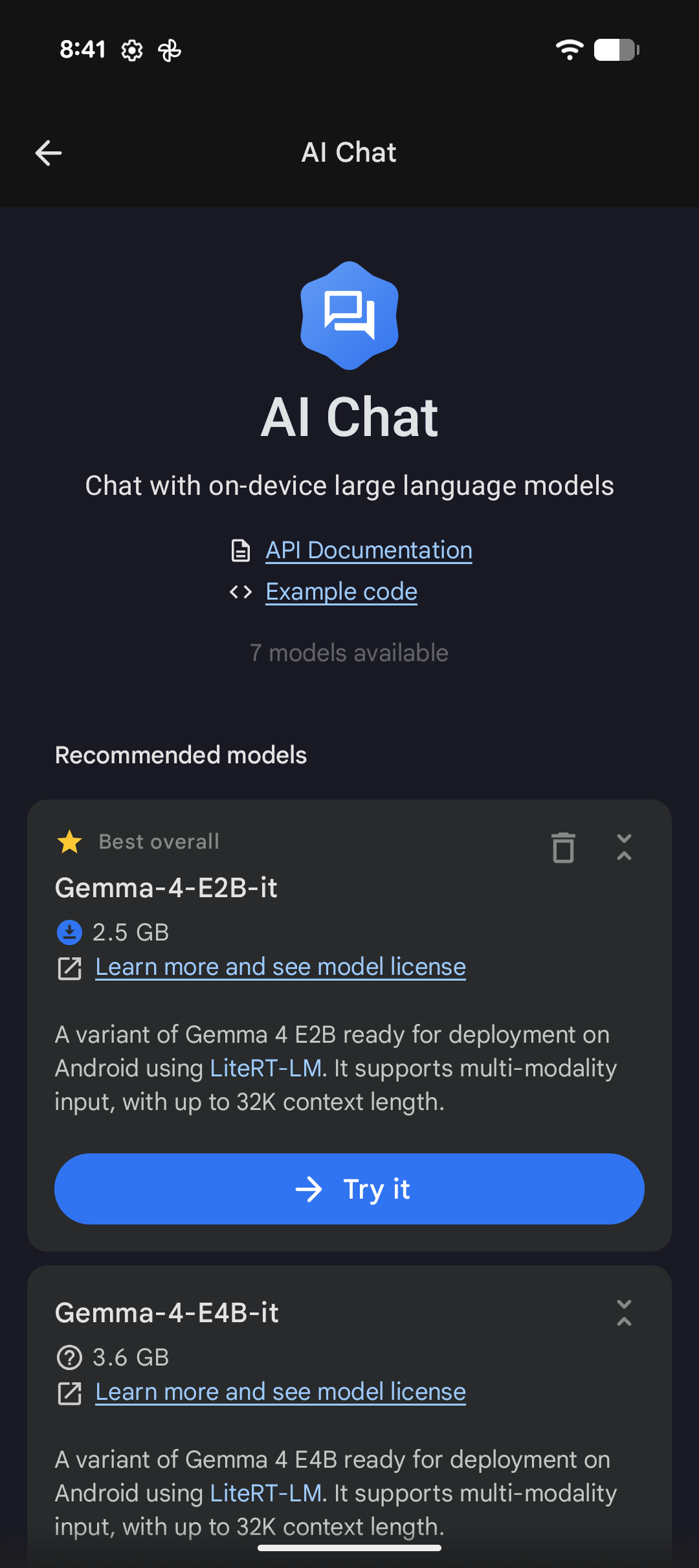
6. Launch the chat experience
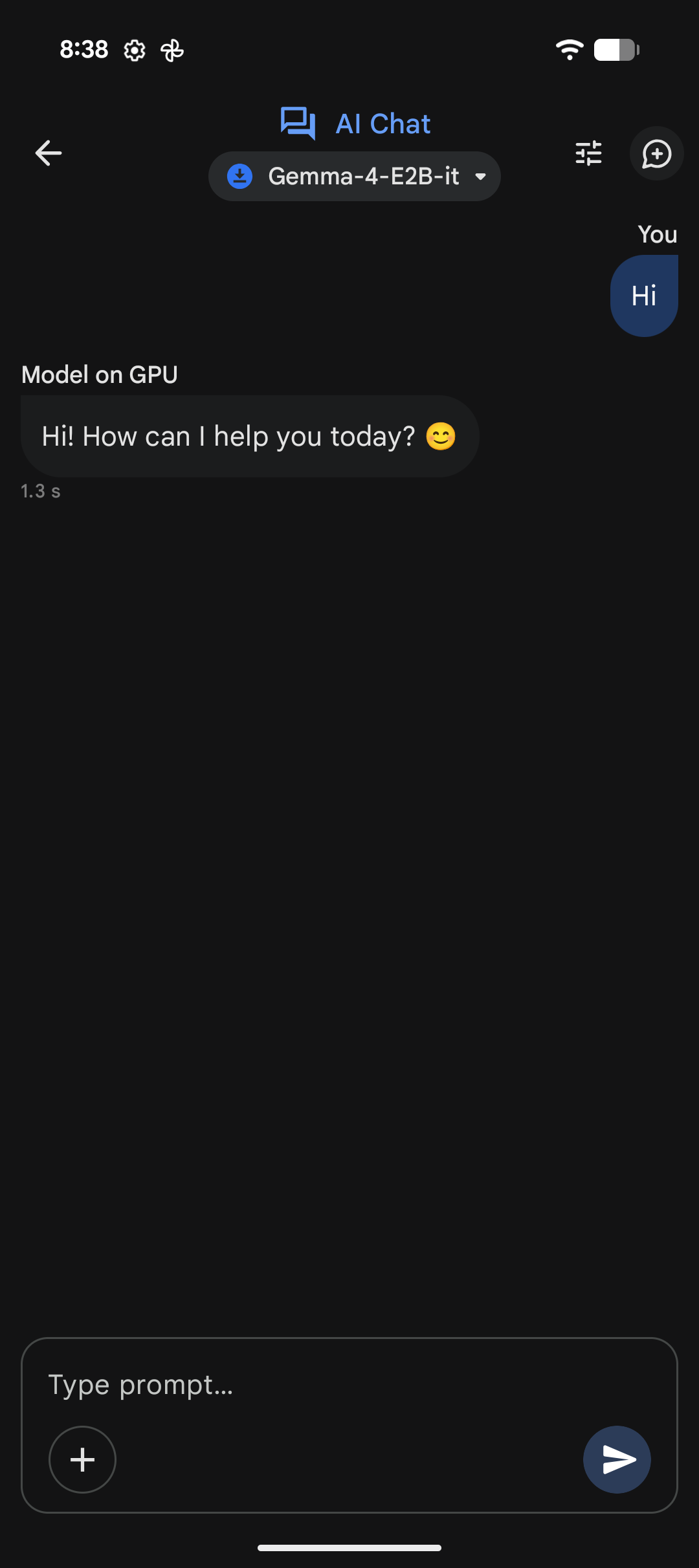
When the download finishes, you are ready to chat with your local model. Inference stays on your device—including in airplane mode. Tap Try it to open the chat UI.
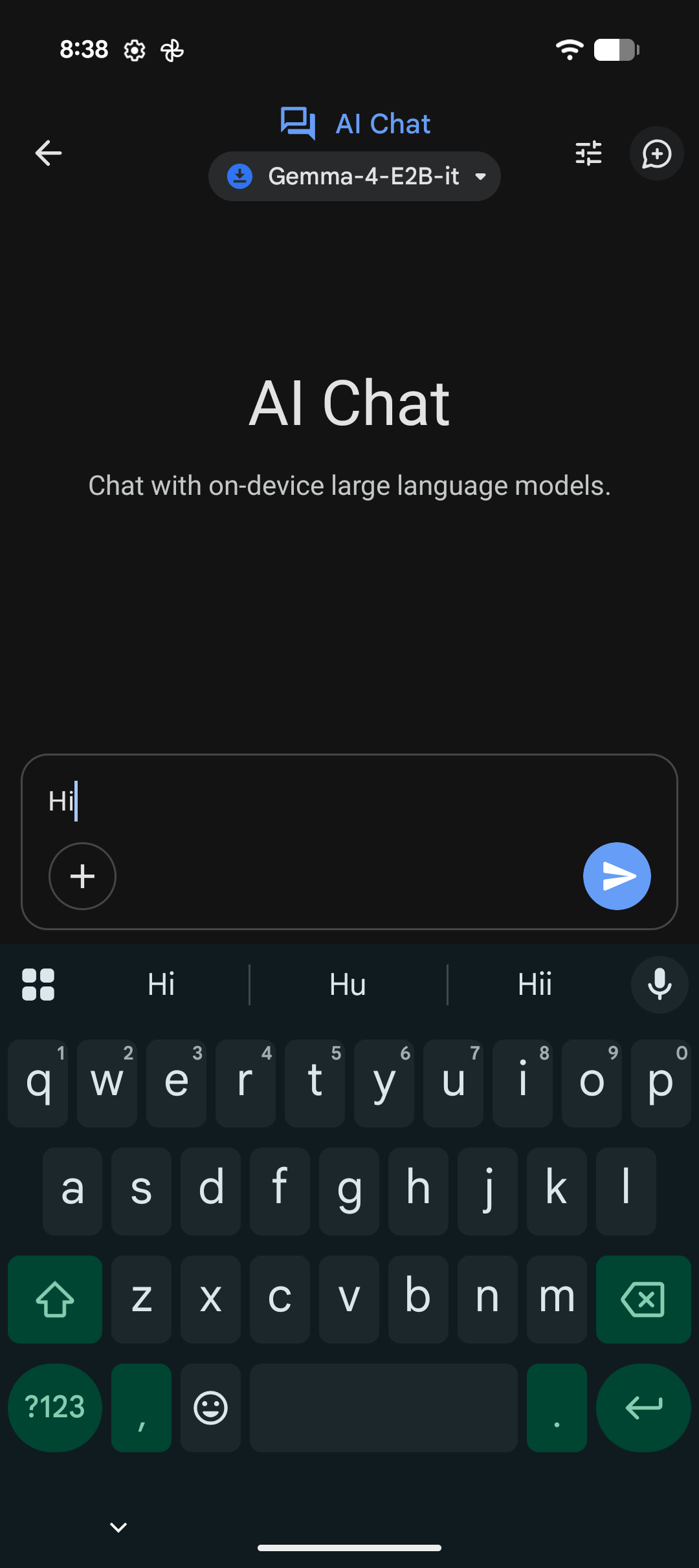
7. Chat with your local model
You can now chat—for example with Gemma family models—entirely on your device, with no round trip to the cloud for generation.
For more information, see the Google AI Edge Gallery documentation.